

Ultimate Album Price Calculator
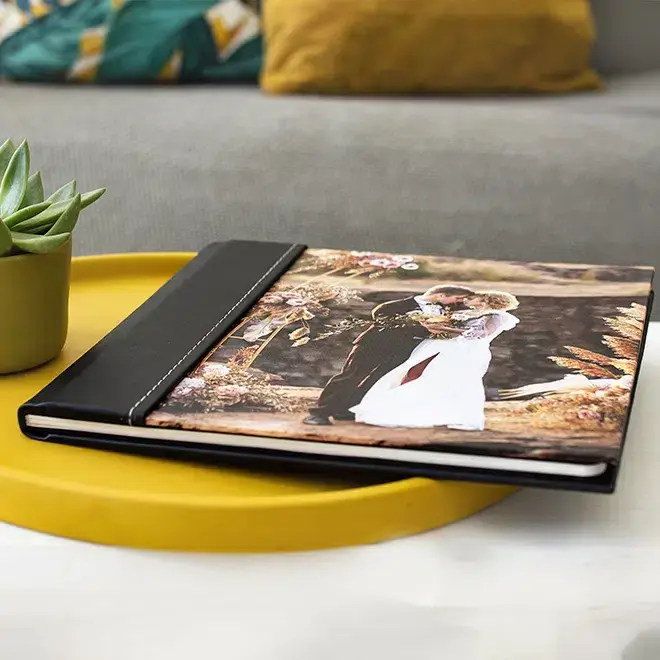
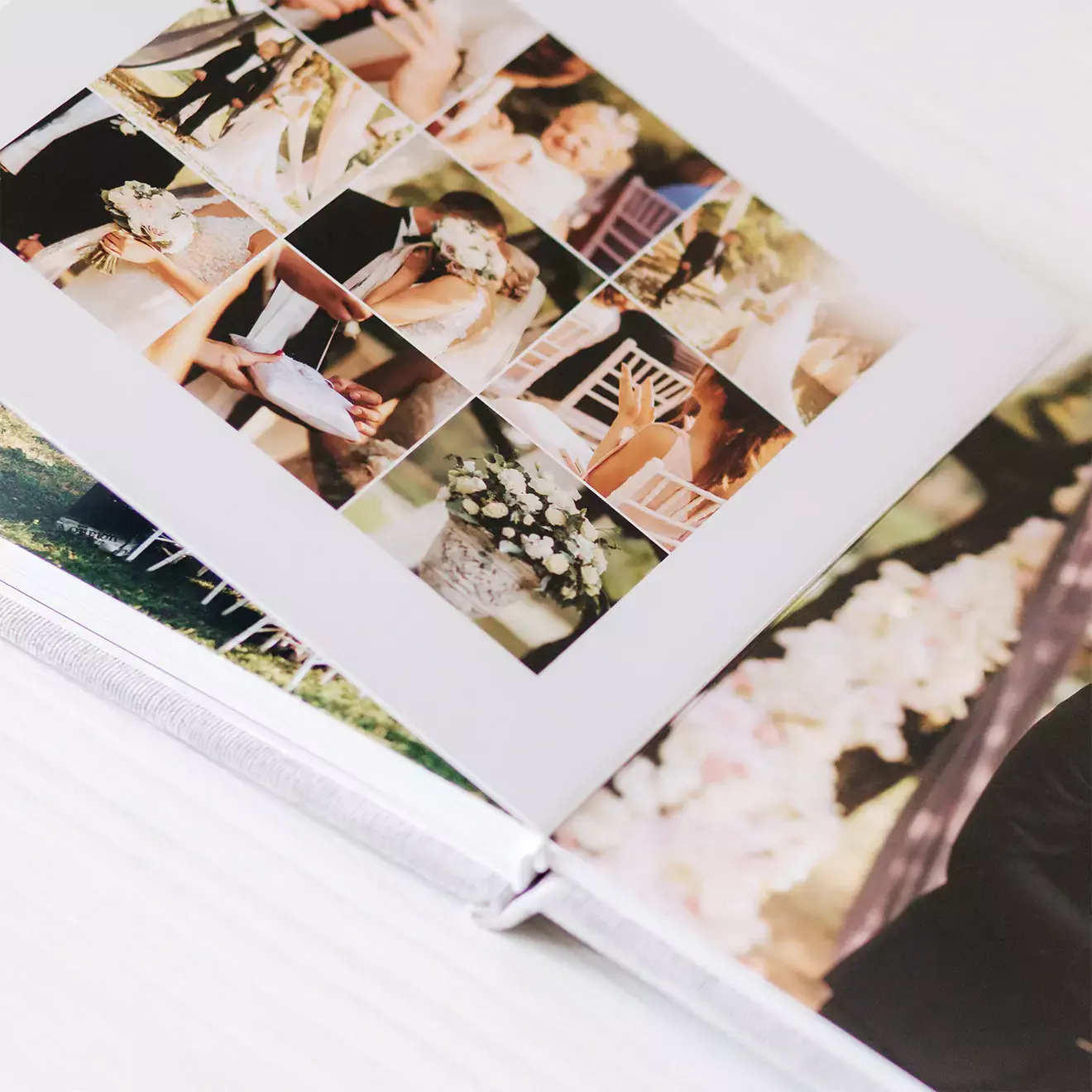
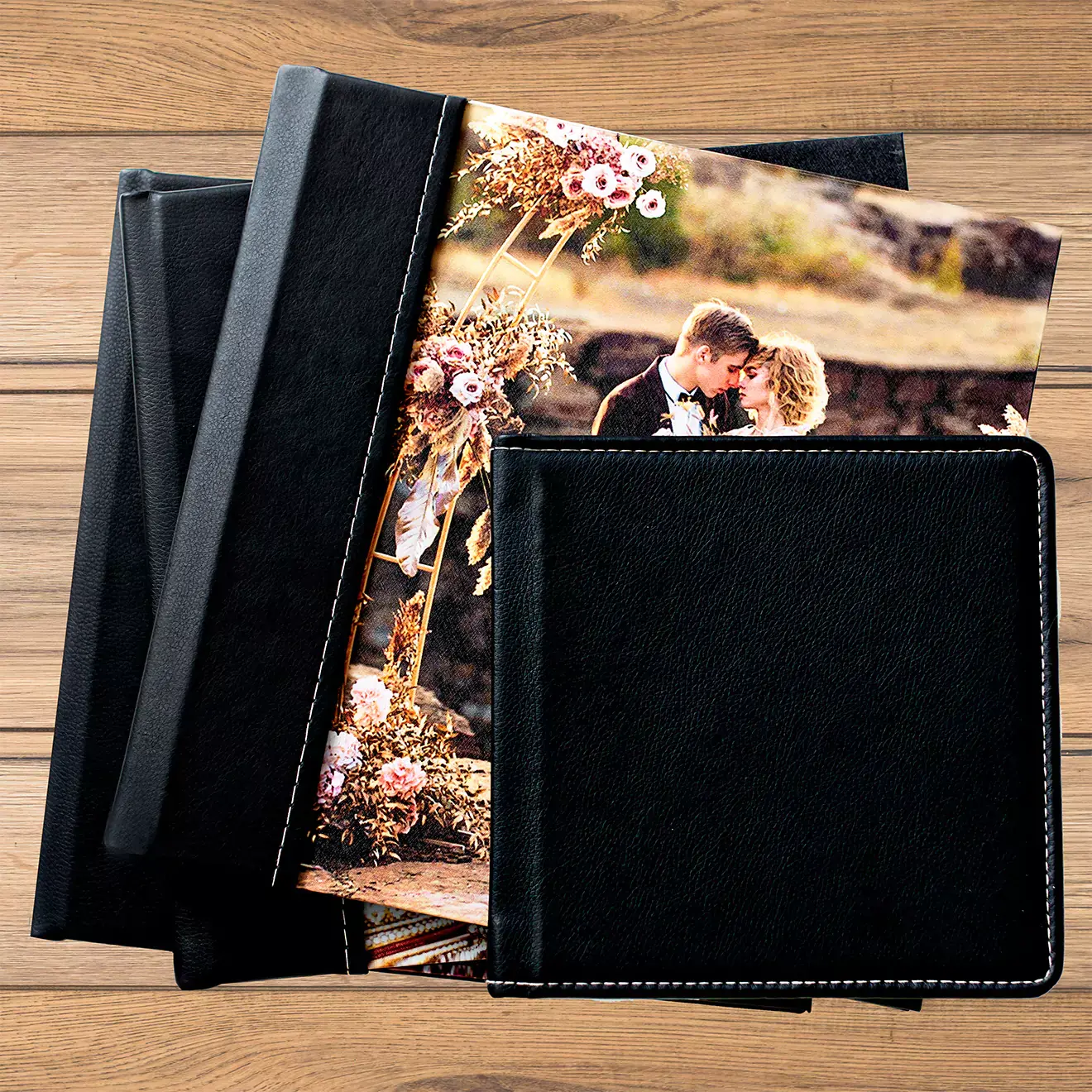
With the Ultimate range of albums, you’ll receive an impeccable display of your most cherished memories. Printed on high quality photographic paper and bound with two page thickness. Each book also offers a durable cover with a wide variety of design, material and colour options. The Ultimate range of albums is an exquisite product that captures and offers years of your most memorable moments.
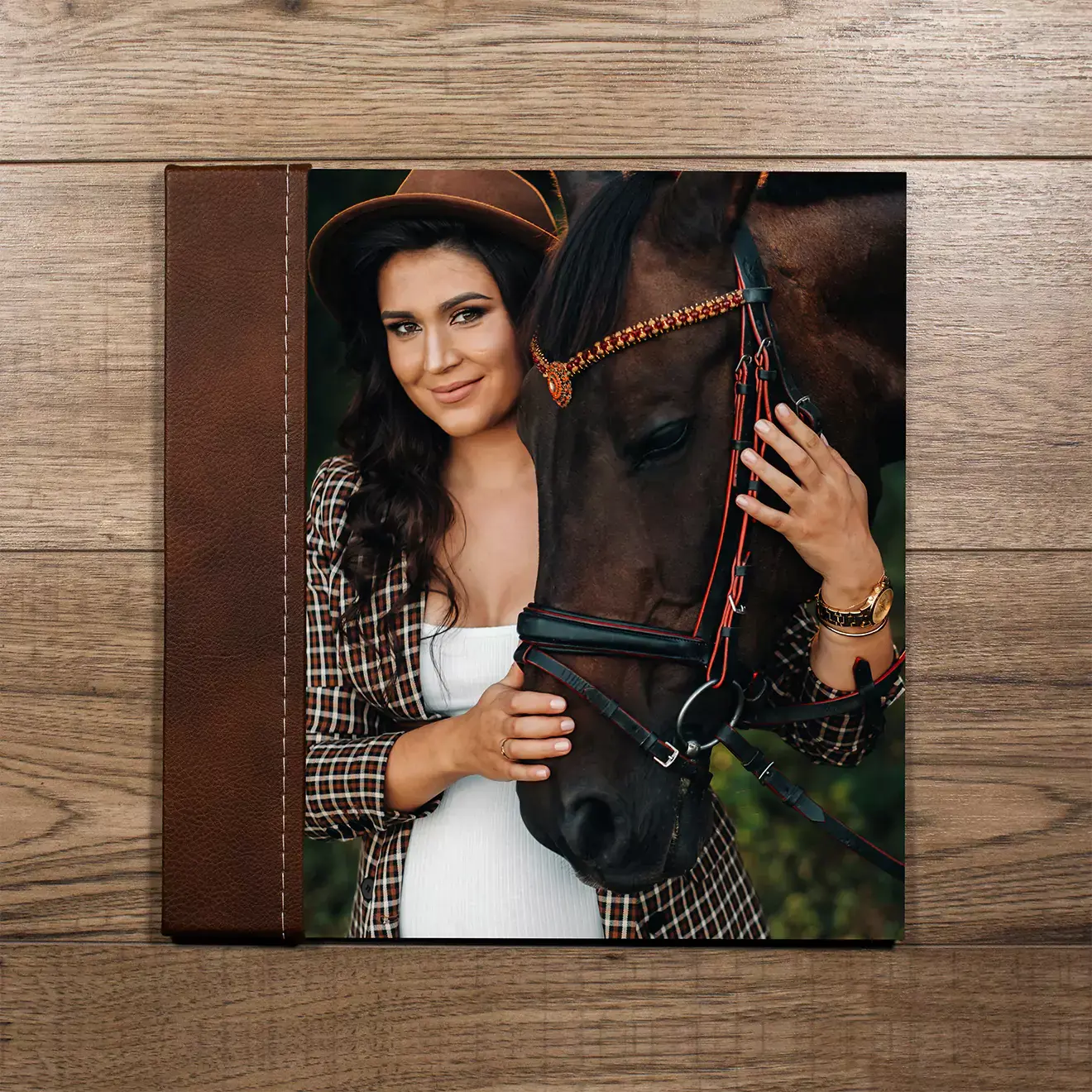
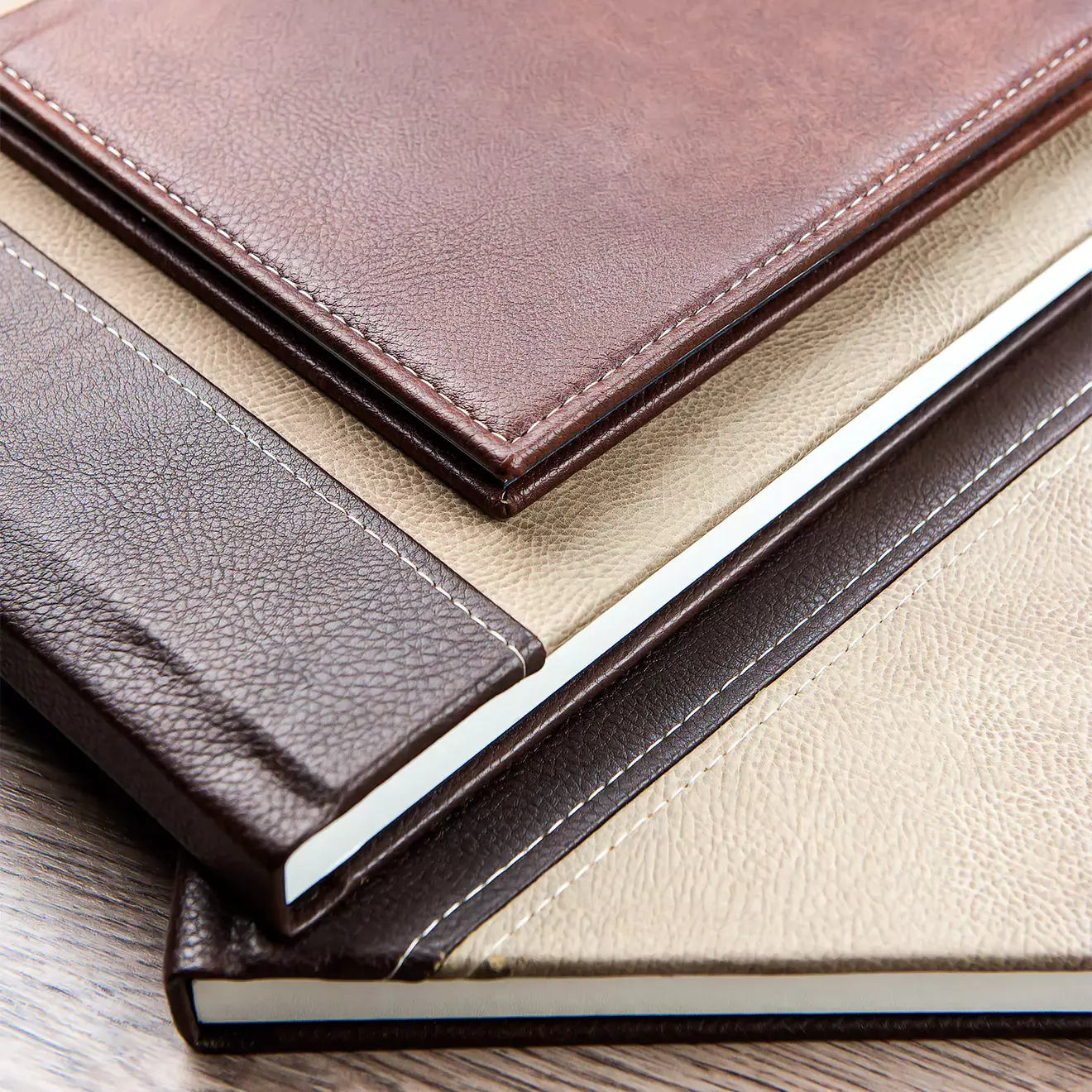
Decide between any of our full material (Luxury) covers for a timeless look or make a personal statement with one of our Semi-personalised covers, each with their own beautiful and unique design. A host of variations and added options give you endless possibilities to create a product that is uniquely suited to your tastes and needs
- Approx size: 30x20cm
- Cover Options:
- Hardcover, Printed & Leather, Wheat Laminated where printed
- Hardcover, Leathers, canvas or linen
-
Paper Options:
- Silk Photographic Paper (default)
- Silk Photographic Paper Mounted on 1mm Board
- Printing: 640dpi WetLab
- Spreads: 10-35
Create your Photobook in 3 Easy Steps

Free delivery: Main Centers, Orders over R599

Dedicated customer support

Quality guaranteed

A truly South African company

Secure online payment
 Back to albums >

Creating your Ultimate Album with alternative design software
RapidStudio’s online photobook editor offers beautiful, professional layouts that are easy to use. If you prefer to use alternative design software, follow the steps below.
Step 1: Set up Spreads
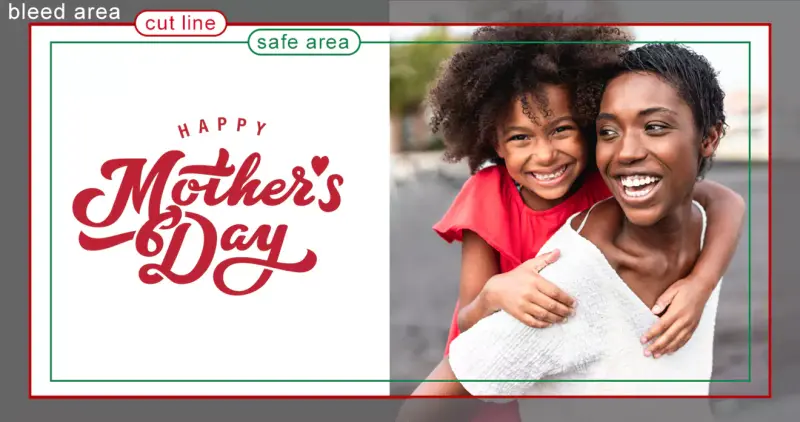
This is the approximate area where the guillotine will trim your page to size.
BLEED
This section of the artwork outside the cut line will be trimmed off. It ensures the picture will bleed off the page and there will be no white lines between your picture and the edge of the page.
SAFE AREA
The important parts of images & text must be inside the green safe area line to avoid being cut off.
30x20 Landscape Album Photobook Spread Size
| Bleed mm (each side - top, bottom, left & right) | Trimmed Page Height (mm) | Trimmed Page Width (mm) | Final Page Height including Bleed (mm) | Final Page Width including Bleed (mm) |
|---|---|---|---|---|
| 1.5 | 200 | 600 | 203 | 603 |
Step 2: Set up Cover
We recommend using the RapidStudio editor for the cover design for its preset designs and built-in spine size. If you're using your own design program, follow the instructions below.
Step 3: Save or Export your files
Save cover and pages separately. Recommended resolution 300 DPI for images (high quality print) in sRGB colourspace.
Step 4: Upload files into the RapidStudio editor or send a link
Go to the top of this page and select your product options such as cover style, cover material, and colour, etc. and choose how you would like to send us your book - Multi-page PDF or single pages or send a link, then follow the instructions below:
- Prepare your files so that they are named in chronological page order, example 001.jpg, 002.jpg, etc.
- Click the "import Artwork" button. This will launch the editor (where you will deposit your files).
- Click the "Upload images" button on the left-hand side of the editor and select your images.
- Populate your cover first buy draging it in from the images on the left.
- Click on page 1 and click the autofill "wand", situated just to the right of the "Upload images" button. This will populate your book (it will automatically create the number of pages you need).
- Page through the entire book, make sure all key visual elements like text and picture borders are within the safe area (green line). All pictures that you want to "bleed" are off the page like the example above.
- Do a final check by clicking the "preview" button located just left of the "add to cart button" on the top right of your screen.
- There is a grey border around the page, this is the "bleed" it will be cut off but it needs to have part of the image (if you want it to "bleed") right to the edge for a good result.
- Drag and drop your cover pdf first.
- Click on page 1.
- Drag and drop your pdf on the first page and provided all the pages are the same size it will auto fill the book.
- Page through the entire book, make sure all items let text and picture borders are within the safe area (green line). All pictures that you want to "bleed" are off the page like the example above.
- Do a final check by clicking the "preview" button located just left of the "add to cart button" on the top right of your screen.
- There is a grey border around the page, this is the "bleed" it will be cut off but it needs to have part of the image (if you want it to "bleed") right to the edge for a good result.
- Go to wetransfer.com
- Click the upload files button or drag and drop to upload your files.
- Type info@rapidstudio.co.za into the email address and click the transfer button.
- After your files have uploaded on WeTransfer, a screen will pop up with a link to your files. Copy this link and paste it into the "file link" space provided above.
- Make sure you have selected all the options that you want, including the correct number of pages you need for your book.
For Single Spread files
For Multiple Spread files
Or, send a link
Step 5: Follow the ordering process
After all steps are completed, proceed to the cart and follow the checkout process.